The Complete okdoc Guide: How to Create, Send and Sign Documents with AI — Step by Step
okdoc turns any contract, quote or agreement into a signed — and paid — document. No Word, no printing, no chasing clients. This guide walks you through everything step by step, from the moment you sign up to your first document that gets signed and paid. No technical knowledge needed — just follow the screens.
What you can do with okdoc
- Create a document for signature in three ways: upload an existing PDF, let the AI write it from a single prompt, or build a rich signing page.
- Send it for secure digital signature — one signer or several, with identity verification when you need it.
- Collect payment the moment it's signed (Sign & Pay) — credit card, link, or bank transfer.
- See what actually happened inside the agreement — how many opens, how long they stayed in each one, time per page, scroll depth, and a click heatmap drawn on the document itself.
- Get a WhatsApp the moment a client is reading it, plus a daily morning brief on what's hot and what's stuck.
- Track who opened, who signed, who paid — and let automations send reminders that adapt to what the recipient actually did.
Launch offer: during sign-up, on the billing page, enter the coupon code `LAUNCH30` to get the full plan free for 30 days.
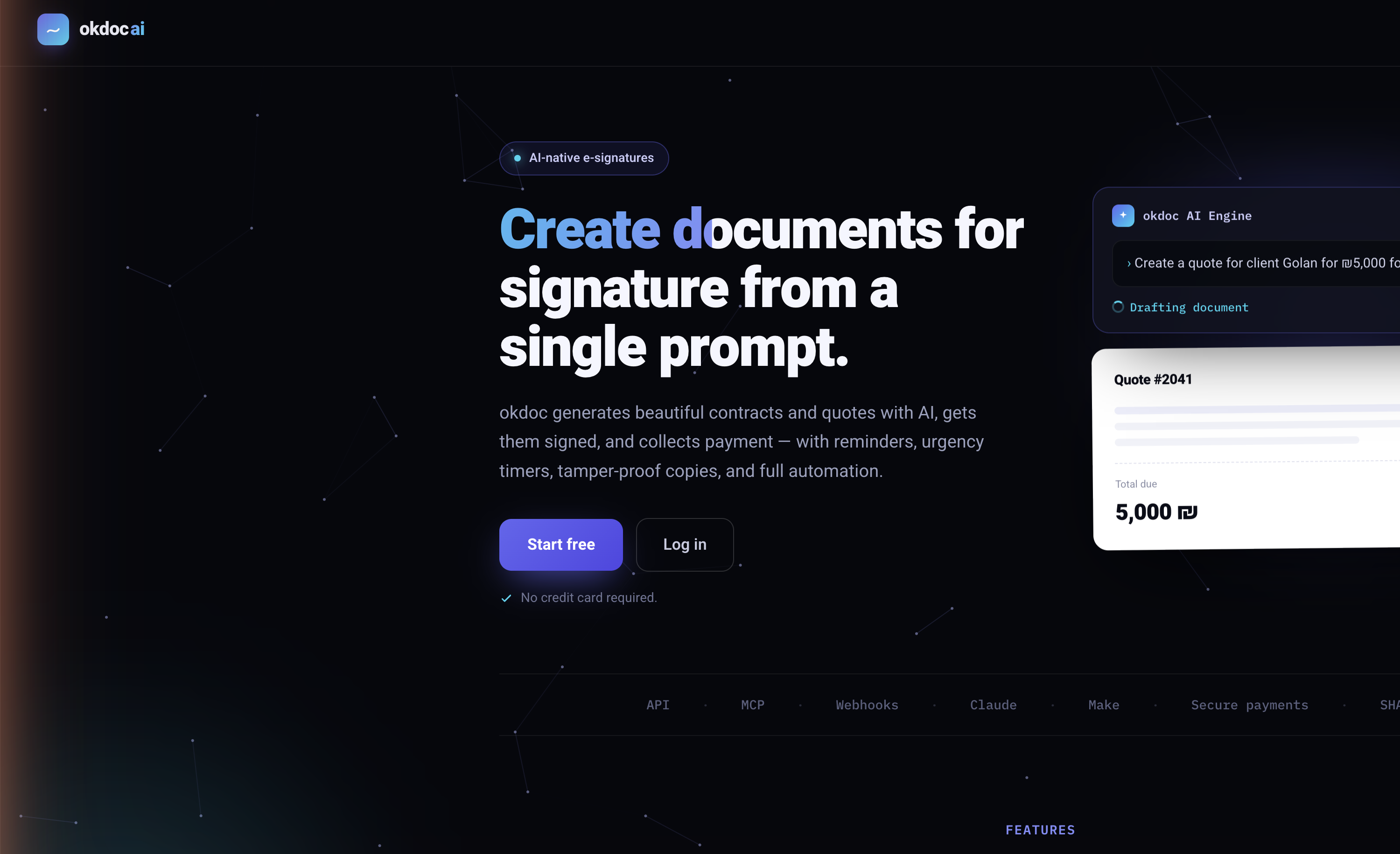
Step 1 — Sign up and log in
1. Go to okdocai.com and click "Start free". 2. Enter your email. You'll receive a 6-digit code — type it in and you're in. (You can also use "Sign in with Google" in one click.) 3. On your first login you'll be asked to fill in your business profile — this matters, because it becomes the letterhead on your documents and also feeds the AI.
Filling in your business profile
Add: business name, legal name, company/VAT number, address, phone, website, and a logo (optional). You can update it any time under Business settings in the side menu.
Don't skip the "WhatsApp for inquiries" field. That's the number okdoc sends your real-time alerts and your morning brief to (Step 9) — without it, those alerts simply don't go out.
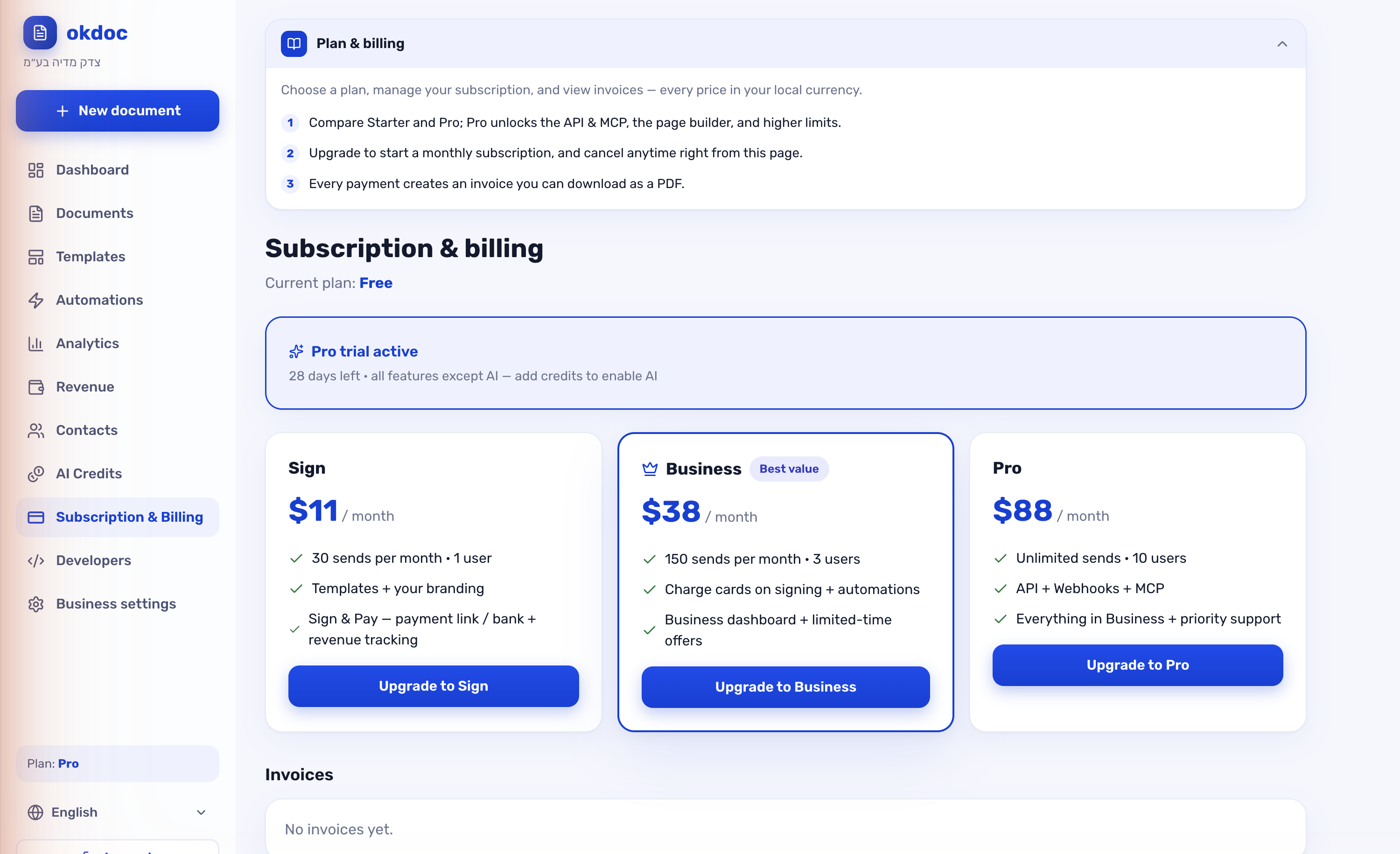
Step 2 — Activate the coupon (30 days free)
1. In the side menu, click "Subscription & Billing". 2. Choose a plan, and in the coupon field enter `LAUNCH30`. 3. Confirm — you now have 30 days free with every feature. No credit card required.
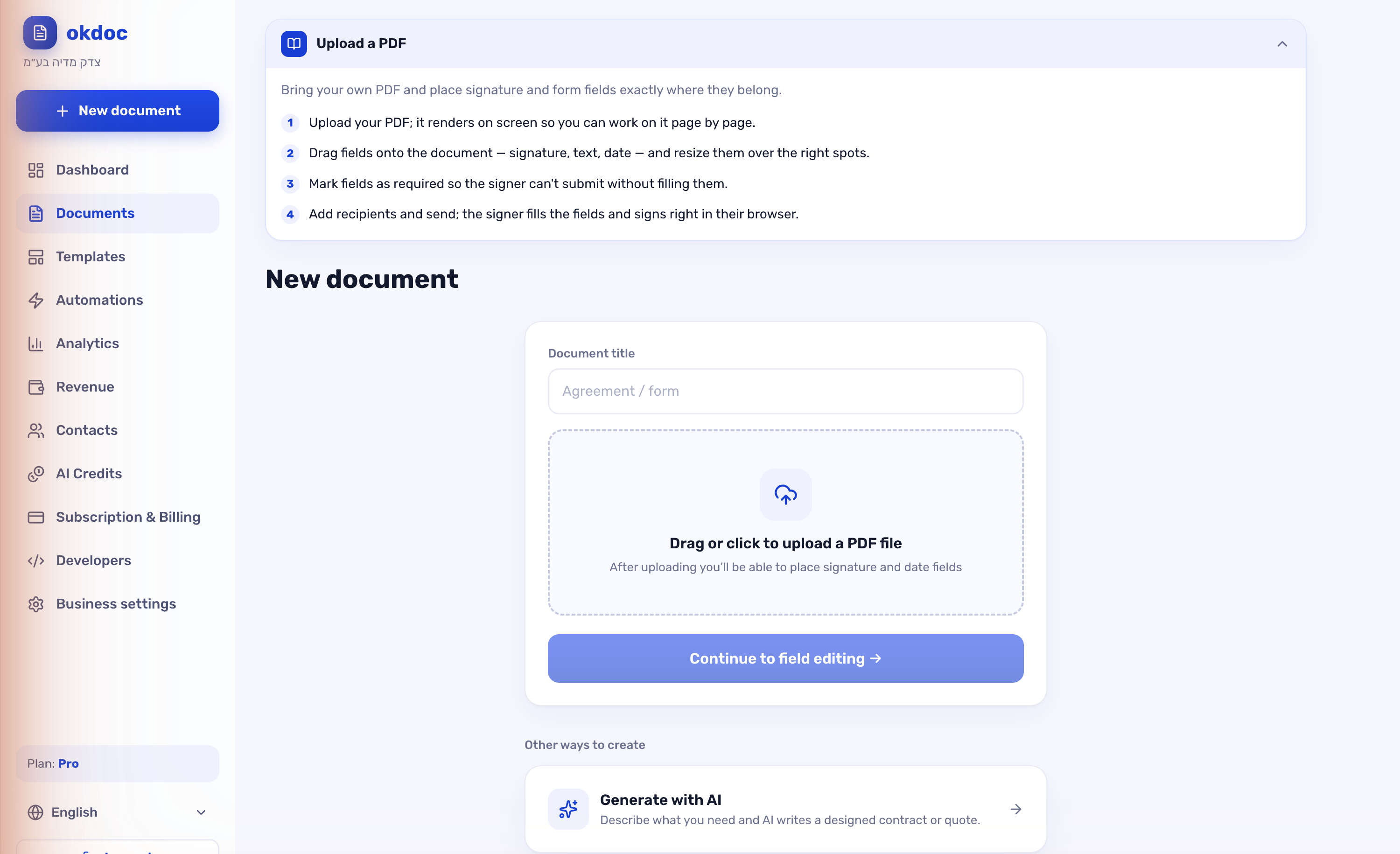
Step 3 — Create your first document
Click "New document" (the blue button at the top of the menu). There are three ways:
Option A — Upload an existing PDF (fastest)
Best when you already have a contract or form ready.
1. Drag your PDF onto the upload area (or click to choose a file). 2. The document opens on screen. Now place the fields: drag a Signature, Date, Name, Email, Stamp, Checkbox or Price field onto the right spots. 3. Put the signature field next to the word "Signature" or the dotted line in the document. 4. Click "Continue to field editing" → then send it (Step 4).
Tip: there's also Auto-mapping (AI) — drop in a PDF and the AI figures out where the signature fields belong and places them for you.
The price field is filled by you, not the signer. Place a Price field on the PDF exactly where the amount belongs. Then, right before you send, a "Prices to fill before sending" section appears in the send panel and you type the amount there. okdoc won't let you send until every price field is filled, so a quote can never go out blank. The signer sees the amount as a locked, read-only field, and it's baked into the signed PDF. That's how one standard contract serves you again and again with a different price for each client.
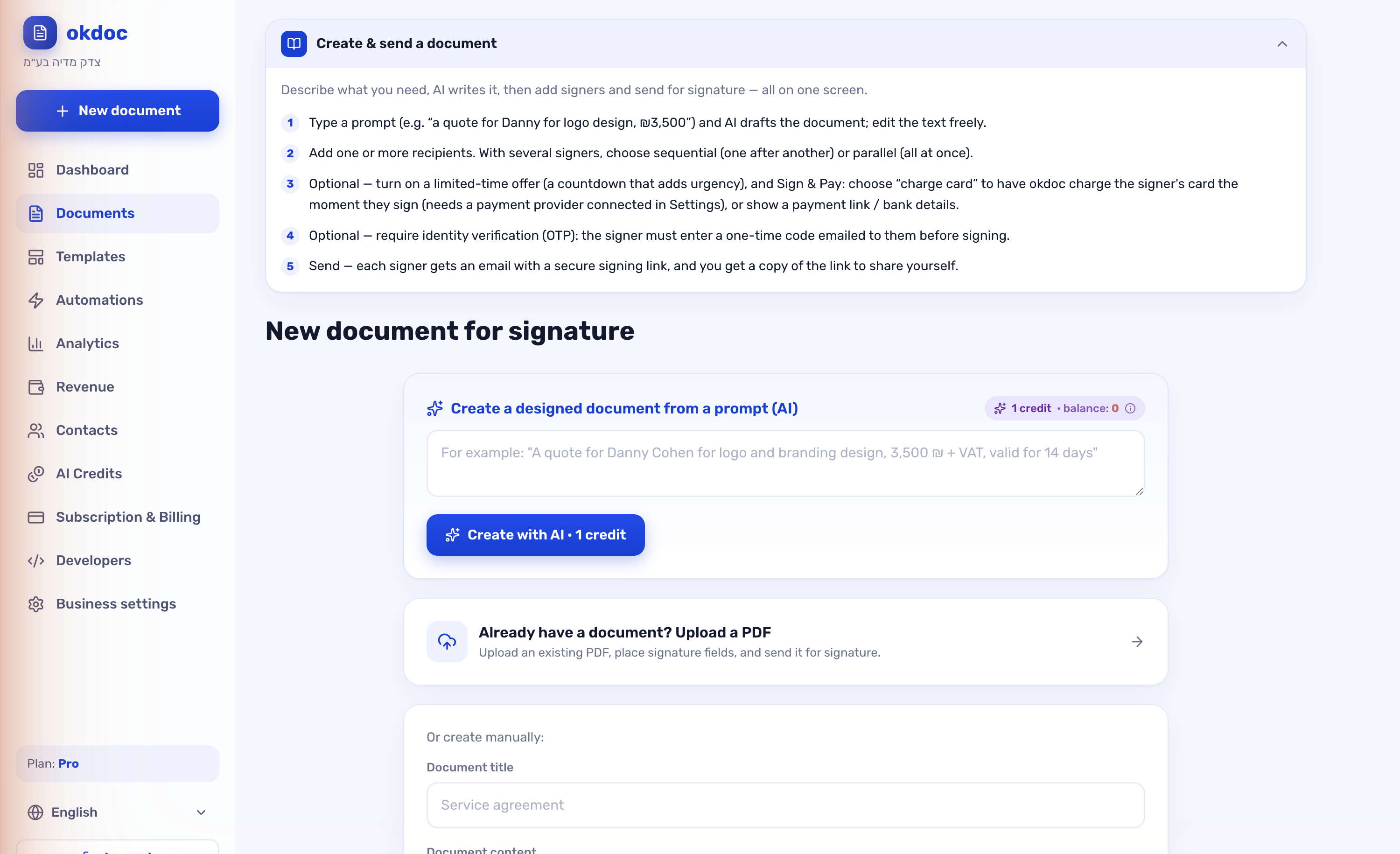
Option B — Generate with AI (from one prompt)
Best when you don't have a document yet and want the AI to write it.
1. Choose "Create with AI". 2. Describe what you want in one sentence, for example: "A $1,500 quote for Acme Inc. for strategy consulting, valid for 14 days". 3. Click "Create with AI" — within seconds you get a full, beautifully designed document: title, intro, sections, a pricing table and terms, all on your business letterhead. 4. Review it, edit if needed, and continue to send.
Option C — Build a rich signing page (Pro)
Best for "wow" proposals — a full landing page with images, video and a pricing table, ending in a signature.
1. Choose "Build a signing page". 2. Add blocks in order: cover, text, image gallery, video, testimonial, pricing table, and a contract block (the part that gets signed). 3. Only the contract block is signed and sealed — the rest is presentation and marketing.
Step 4 — Send for signature
Once the document is ready:
1. Enter the recipient's name and email (the email is sent to them automatically). 2. Multiple signers? Add more recipients and choose sequential (one after another) or parallel (all at once). 3. Want identity verification? Turn on OTP verification — the signer gets a one-time code by email before they can sign. 4. Click Send. The recipient gets an email with a link, opens it, and signs right from the browser (mobile too).
The client doesn't read the document's language? Instant translation on the signing page
Above the document, on the signing page, there's a "Translate this agreement for me" bar with five languages: Hebrew, English, Arabic, Russian and French. The signer picks one and within seconds a translation appears in its own clearly-marked panel below the original. If their browser language differs from the document's language, that language is highlighted for them.
The legal part, and it matters: the original is never replaced and never hidden, and the signature is always on the original text. The translation is a reading aid only, and it says exactly that at the top of the panel, in the language the signer just chose.
Translation is available on text/AI documents and on rich signing pages. An uploaded PDF has no server-side text layer, so the bar isn't shown there.
Step 5 — Sign & Pay
One of okdoc's most powerful features: collect payment on the same screen where the document is signed.
1. When creating the document, enable Sign & Pay. 2. Choose a method: - Charge card — the client signs, the card is charged automatically, and the document is marked "paid" (requires a connected payment provider under Business settings → Payments). - Link — show an external payment link (Stripe / PayPal / any URL). - Bank transfer — show your account details for payment. 3. Every payment collected appears in the Revenue dashboard.
Your bank details are saved once. Under Business settings, right below the payment-provider connection, there's a "Bank account — for bank transfer" card: account holder, bank name, branch and account number. Save it once and bank transfer becomes available as a payment method on every document, alongside the card charge, with the details filled into the payment instructions the signer sees. Very handy for business clients who'd rather not hand over a card.
Step 6 — Limited-time offer (to drive closing)
Want the client to sign fast? Add a limited-time offer:
- Set a label (e.g. "10% discount") and a number of hours it's valid.
- The recipient sees a countdown timer, and okdoc sends reminders automatically.
- When time runs out you can lock the document or just notify.
Step 7 — Track your documents
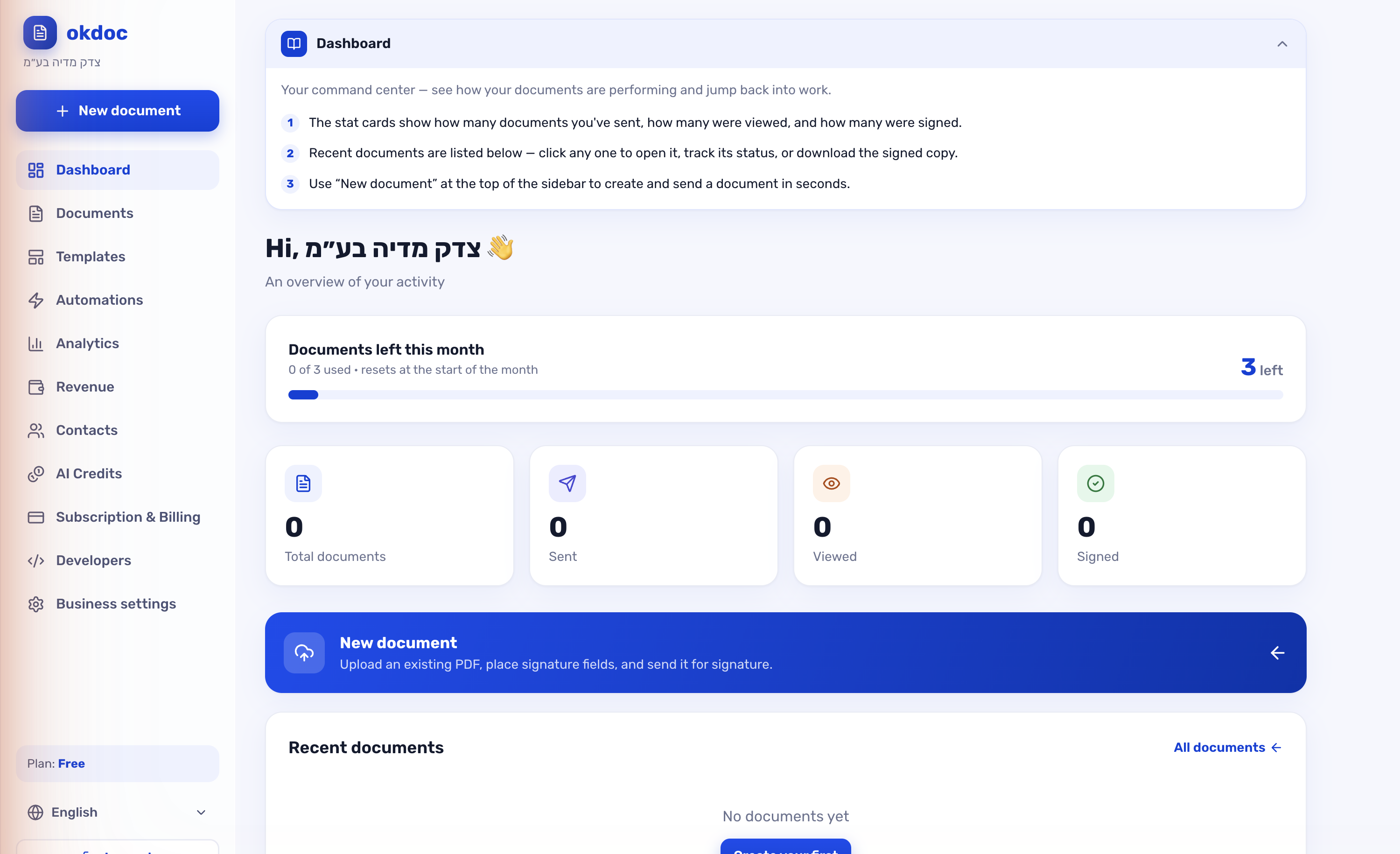
- The Dashboard shows a summary: how many were sent, viewed, signed, and how many you have left this month.
- Documents shows the status of each one: sent · viewed · signed · awaiting payment.
- Analytics shows your signature rate, time-to-sign, and Opportunities — who opened but hasn't signed yet (hot leads to close).
Heat status — who is closest to signing right now
Next to the regular status, every document in the list gets a heat badge, computed from what the recipient actually did, not from guesswork:
- 🔥 Hot — opened in the last two hours, or came back for another open in the last two days, or read it at length and still hasn't signed.
- 👀 Viewed — they opened it, nothing dramatic.
- 💤 Dropped off — they peeked, barely scrolled, and haven't been back in 48 hours. The badge also tells you which part of the document they stopped at.
- ⏳ Stuck — sent three or more days ago and never opened once.
Above the list there's a "Hottest first" button that sorts documents by who is closest to signing right now, with the hot count next to it. That's your call list for today. Documents that are already signed, paid or closed get no badge — there's nobody to chase.
How deals actually close for you
On the Analytics page, below the charts, a "How deals close" section is computed from what signers really did:
- Median time to sign, plus your fastest signature ever.
- Open → sign — how many of the documents that were opened actually got signed, and how many were opened and never signed (that's your follow-up list).
- Reading depth — how long signers read compared to those who didn't sign.
- Where deals die — the part of the document where most non-signers stopped.
- Mobile vs. desktop and the best time to send.
Every metric has a minimum-sample guard and only shows once it's actually trustworthy. If you haven't sent enough documents yet, the metric simply doesn't appear — deliberately: a confident-looking number computed from two documents is worse than no number.
Step 8 — What happened inside the agreement
This is the part that turns tracking into closing. Open a document you've sent and a "What happened in the agreement" card appears in the side column with everything the recipient did on the signing page:
- Opens — how many times they went into the agreement. Coming back after a break counts as a new open.
- Total viewing time — active time only, meaning only while the agreement was actually in front of them.
- Average scroll depth — how far down the document they got.
- Devices — how many views came from a phone and how many from a computer.
- Time per section — bars showing how many seconds they spent on each PDF page, or on each block of the signing page.
Below that there's a row per visit that expands into a full timeline: when it was opened, how long they stayed in that particular open, and which parts of the document they reached and when.
A heatmap on the document itself
On PDF documents, the recipient's clicks and taps are drawn straight onto the document as soft red dots, merged across every visit. You can literally see where they got stuck: on the payment clause, on the timeline, on the cancellation terms. It's the best possible way to open a call, because you already know what's bothering them.
Tracking works on mobile too, and it runs on okdoc's own first-party component — no third-party scripts.
Step 9 — Real-time alerts and the morning brief
- A WhatsApp the moment they're reading. When a recipient settles into the agreement and crosses the genuine-reading threshold (about 20 seconds of active viewing, not a one-second glance), okdoc WhatsApps you immediately: who is reading, which agreement, and a direct link to the document. That's the moment to call, while the agreement is still on their screen. There's a six-hour cooldown per document so you don't get flooded.
- A daily morning brief. Every morning a short WhatsApp arrives with yesterday's picture: how many agreements were opened, how many were signed, which ones are hot (opened again and again, or read at length, and still unsigned), and which ones are going stale (sent days ago and never opened). If there's nothing to report, nothing is sent.
Both alerts go only to the WhatsApp number in your business profile, never to the signer. If there's no WhatsApp number, the morning brief arrives by email instead.
Want quiet? Under Automations you can switch off "First-open alert".
Step 10 — Smart automations (work that runs itself)
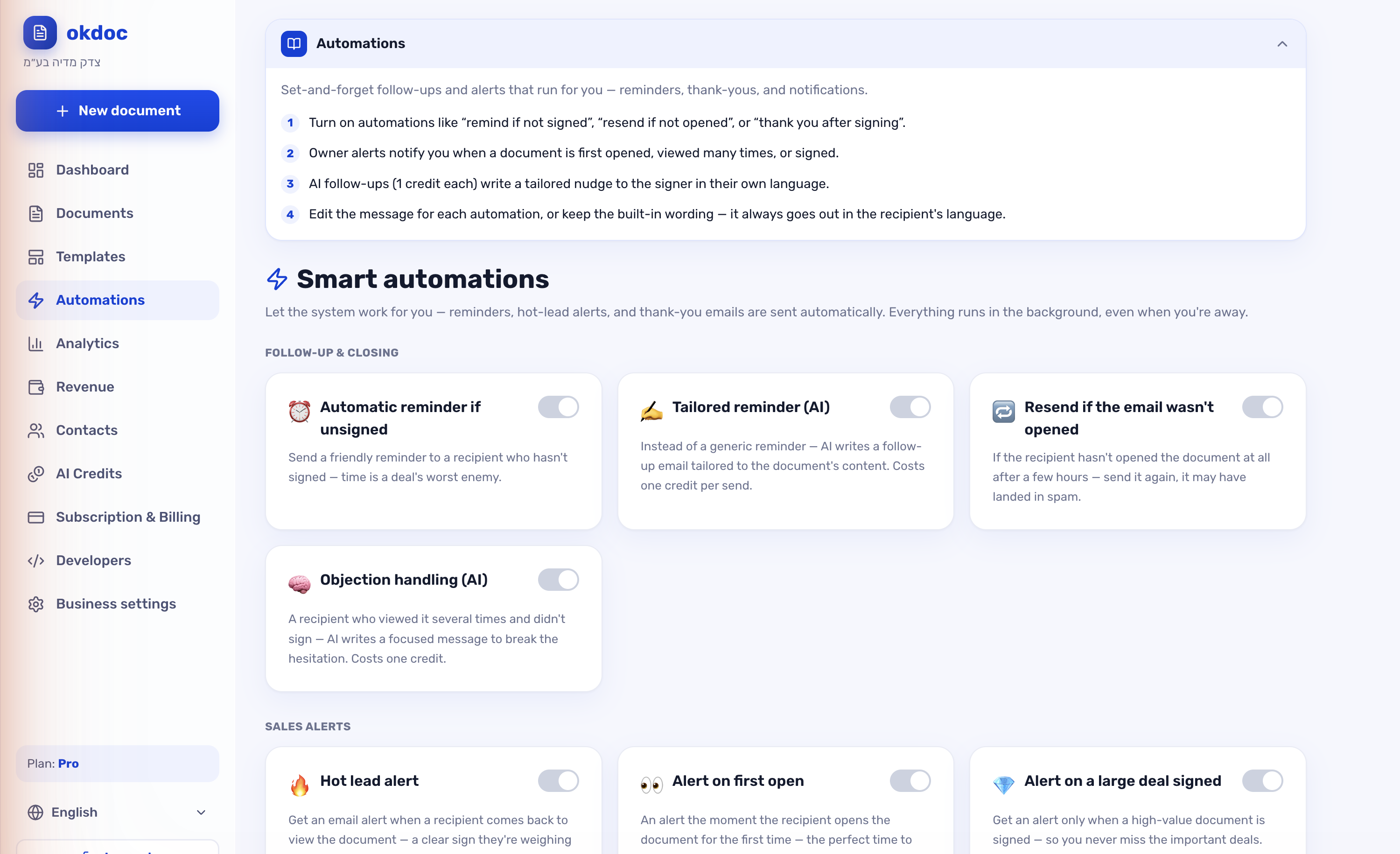
In the Automations menu you switch rules on and off with one click. A few examples:
- Reminder if unsigned — automatically remind after X hours.
- Payment reminder — if signed but not paid.
- Hot-lead alert — if someone opened the document several times without signing.
- Auto thank-you + send the signed copy after signing.
Some reminders are even written by AI and tailored to each document.
Behaviour-adaptive reminders
The "Smart reminder based on behaviour" automation doesn't send everyone the same text. It first looks at what the recipient actually did with the agreement, and only then picks an angle:
- Never opened it — the email probably isn't landing. On top of the email, a WhatsApp with the signing link goes out (when there's a phone number), along the lines of "I sent you an agreement, did it reach you?".
- Opened it and bailed within seconds — a soft nudge: "Anything unclear?", offering to reply by email or take five minutes on the phone.
- Read it properly and still didn't sign — a closing nudge: "You've reviewed it, all that's left is signing." And when we know which part they lingered on, a line is added inviting a question about exactly that part.
If the behaviour says nothing conclusive, this automation stays silent and waits for the next run instead of nagging for no reason. The regular unsigned-document reminder uses the same adaptation too, as long as you haven't written it a custom message of your own.
Step 11 — Tools that save you time
- Templates — save a recurring document as a template and send it again in one click.
- Contacts — auto-filled from every document you send; type a name and the email fills in itself.
- Folders — organize documents by client or project.
- Content library — saved blocks to reuse across signing pages.
Step 12 — For the tech-savvy: connect to Claude (MCP) and the API
Under Developers you can:
- Connect okdoc to Claude via MCP — then simply ask Claude "create a quote for X and send me the link" and it does everything through your account.
- Use the API and Webhooks to connect from Make/Zapier or your own code.
Frequently asked questions
Is it legally valid? Yes — every document is signed digitally with a full audit trail (timestamps, IP, verification), and a tamper-proof copy is kept.
Does the client need to download an app? No. They get an email, click the link, and sign from the browser — mobile included.
How many documents can I send? Depends on your plan. With the `LAUNCH30` coupon you get the full plan free for 30 days.
Hebrew, English, Arabic? Yes — the system and documents support multiple languages, and the signer can also request an instant translation on the signing page.
The client doesn't read the agreement's language — what now? They tap a language in the translation bar on the signing page and get a translation next to the original. The signature stays on the original document (Step 4).
How do I know who to call today? From the heat badge and the "Hottest first" button on the documents list (Step 7), from the WhatsApp alert the moment someone is reading (Step 9), and from the "What happened in the agreement" card plus the heatmap that show you exactly which clause stopped them (Step 8).
Summary — 3 steps to get started
1. Sign up at okdocai.com and enter coupon `LAUNCH30`. 2. Create a document — upload a PDF, or let the AI write it. 3. Send for signature — and your client signs (and pays) on the same screen. You see exactly what they did in there, so you know when to pick up the phone.
That's it. Welcome to okdoc — smart, AI-native digital signatures for businesses. Need help or missing something? We're here. 🚀